Get 20% off on your first purchase! Use code: FIRST100

StreamElements Custom Widgets Explained (No Coding Needed) | Stream Grafix
What are StreamElements custom widgets? Learn how custom chat, goal & alert widgets work, how to install them in minutes, and why they beat default widgets — no coding needed.
STREAMING TIPSSTREAMELEMENTS
StreamGrafix
7/11/20266 min read
Introduction
StreamElements custom widgets are the single biggest visual upgrade available to a streamer — and most people don't even know they exist. While everyone else is using the same default chat box and the same gray goal bar, custom widgets let your chat appear in cute animated speech bubbles, your follower goal fill up like a glass of iced coffee, and your alerts celebrate with confetti that matches your brand.
Here's the part that surprises people: you don't need to know a single line of code to use them. This guide explains what custom widgets actually are, how they work under the hood (in plain English), how to install one in about five minutes, and why they're the highest-impact upgrade for viewer engagement in 2026.
What Is a StreamElements Custom Widget?
StreamElements is a free platform that powers overlays, alerts, and on-screen elements for Twitch, YouTube, and Kick. Inside its Overlay Editor, you'll find standard widgets — a chat box, an alert box, goal bars, event lists.
A custom widget is a special widget type where designers can add their own code — HTML for structure, CSS for style, and JavaScript for behavior. That's what makes the magic possible:
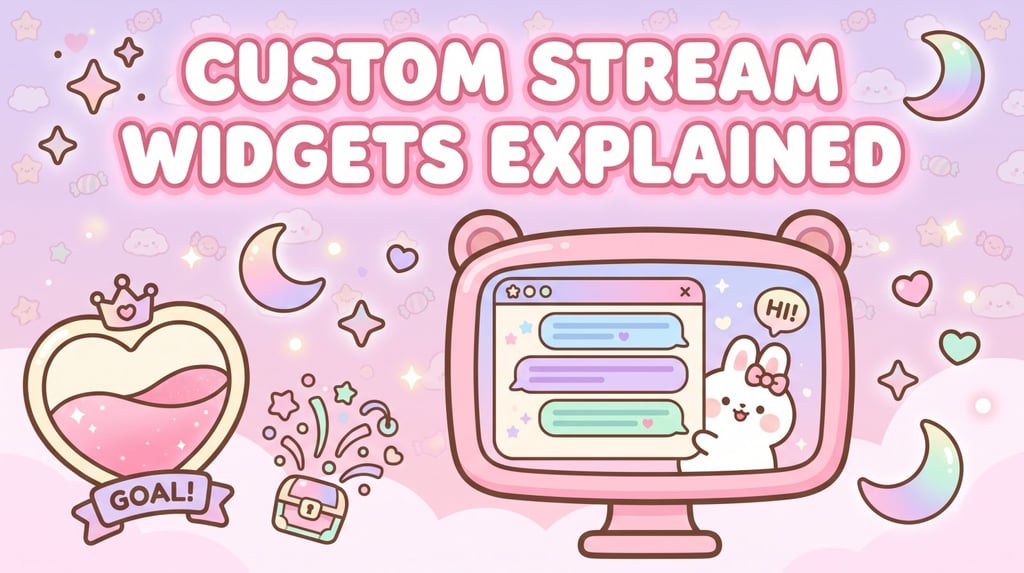
A chat widget where messages pop in as pastel speech bubbles beside a bouncing mascot.
A goal widget shaped like a heart-shaped cup that visibly fills with "liquid" as follows come in.
Alerts with layered animations, particle effects, and custom fonts far beyond what the default alert box allows.
The key thing to understand: the designer writes the code — not you. When you buy a pre-built custom widget, you receive the finished code plus simple settings. Installing it is copy-paste, and customizing it is done through friendly menus (color pickers, font dropdowns, sliders). If you can fill in a form, you can run a custom widget.
Default Widgets vs. Custom Widgets: What's the Real Difference?
Look
Default: same appearance as thousands of other streams.
Custom: a unique design that matches your brand.
Animation
Default: basic or none.
Custom: full animations, particle effects, and celebration moments.
Customization
Default: limited color and font tweaks.
Custom: deep options through Fields settings — colors, fonts, messages, and layouts.
Setup
Default: built in.
Custom: a five-minute copy-paste with a guide.
Cost
Default: free.
Custom: free community widgets, or premium designer-made packages.
Default widgets are fine for a first stream. But because everyone has them, they quietly signal "new streamer." A custom widget set signals the opposite — that your channel is established and worth sticking around for. Viewers judge production value in seconds, whether we like it or not.
The Custom Widgets That Matter Most
1. Custom Chat Widgets
Chat is the heart of Twitch, and putting it on screen keeps lurkers engaged and makes clips more shareable. A custom chat widget turns plain text into a designed experience — alternating bubble colors, animated entrances, name badges, even a mascot that reacts. Viewers love seeing their messages appear in a cute bubble; it's a tiny dopamine hit that encourages more chatting.
2. Custom Goal Widgets
Follower, sub, tip, and cheer goals are proven engagement drivers — but the default gray bar is easy to ignore. Custom goal widgets make progress feel rewarding: shimmer effects as the bar fills, a confetti burst when the goal hits, or creative fill mechanics like liquid rising in a cup. When progress looks satisfying, viewers genuinely want to be the one who tops it off.
3. Custom Alerts & Labels
Alerts celebrate follows, subs, raids, and donations. Custom versions match your entire aesthetic — kawaii sparkles, neon cyberpunk glows, cozy pastel chimes — and recent-event labels ("Latest follower: xyz") keep social proof on screen at all times.
Stream Grafix specializes in exactly these — animated chat widgets, creative goal widgets, and matching alert sets built as complete StreamElements packages with buyer-friendly setup guides. Browse the full widget collection in the shop to see styles from kawaii bunny chat bubbles to neon gradient goal bars.
How to Install a Custom Widget (5 Minutes, No Coding)
Here's the standard process for any purchased StreamElements custom widget:
Open StreamElements → My Overlays → open (or create) an overlay.
Add the widget: click + → Static/Custom → Custom Widget.
Open the code editor: select the widget → Settings → Open Editor.
Paste the provided code: the package gives you HTML, CSS, JS, Fields, and Data — paste each into its matching tab. (Good packages label these clearly.)
Click Save — the Fields tab now becomes a friendly settings panel with color pickers, font choices, and options.
Copy the overlay URL and add it to OBS as a Browser Source.
That's the whole thing. From download to live on stream is genuinely about five minutes, and every quality package includes a step-by-step PDF so you're never guessing.
Why Custom Widgets Are the Best Engagement Upgrade
They invite interaction. A chat widget rewards chatting; a goal widget rewards following. Both create feedback loops that turn passive viewers into participants — and participation is what the Twitch algorithm promotes.
They're always on screen. An alert flashes for five seconds. Your chat and goal widgets are visible the entire stream, working every minute you're live.
They build brand memory. Viewers may forget a username, but they remember "the streamer with the bunny chat bubbles." Distinctive widgets are free marketing every time someone clips you.
They're a one-time upgrade. Unlike subscriptions, a purchased widget is yours forever, works across every stream, and installs into any overlay.
Common Mistakes to Avoid
Thinking you need to code. You don't. Pre-built widgets are copy-paste; the designer already did the hard part.
Mixing mismatched widgets. A kawaii chat widget with a dark neon goal bar fights itself. Choose widgets from one matching family — or grab a bundle designed together.
Skipping the Fields settings. The customization menus exist so the widget matches your colors and fonts. Two minutes there makes it truly yours.
Overcrowding the screen. Chat + one goal + alerts is plenty. Widgets should frame your content, not bury it.
Editing the code directly. If you want a change, use the Fields options — hand-editing code you don't know can break the widget. Quality sellers expose everything important as a setting.
What to Look For When Buying Custom Widgets
Not all widget packages are equal. Before you buy, check for:
Real customization Fields — colors, fonts, and text should be adjustable through menus, not locked in code.
A proper setup guide — a clear PDF or video walkthrough is the difference between 5 minutes and a frustrating evening.
OBS compatibility notes — widgets render in OBS's built-in Chromium browser, and well-built widgets are tested there specifically.
Matching designs — the best value is a widget that matches an overlay family, so your whole stream feels designed as one piece.
Every Stream Grafix widget ships as a complete StreamElements package — all five code tabs, extensive Fields customization, demo files, and a step-by-step buyer guide — and each one belongs to a matching overlay family so your setup looks cohesive from day one.
🎀 First time shopping? Use code FIRST100 for 20% off your first purchase.
FAQs
1. What are custom widgets in StreamElements? They're widgets built with custom HTML, CSS, and JavaScript that go far beyond the default chat box and goal bars — animated chat bubbles, creative goal fills, and branded alerts. Buyers install them by copy-pasting provided code; no coding knowledge is required.
2. Are StreamElements custom widgets free? StreamElements itself is free, and some community widgets are too. Premium designer-made widgets are paid one-time purchases that offer unique designs, deeper customization, animation polish, and setup support.
3. Do custom widgets work with OBS and Streamlabs? Yes. Custom widgets live in your StreamElements overlay, which you add to OBS or Streamlabs as a single Browser Source. They work on Twitch, YouTube, and Kick.
4. Do I need to know how to code to use custom widgets? No. The designer writes the code; you paste it into the StreamElements editor following a guide, then customize everything through visual menus — color pickers, font dropdowns, and text fields.
5. Which custom widget should I get first? A chat widget gives the most constant on-screen value, and a goal widget drives the most viewer action. Ideally get both from one matching design family so your stream looks cohesive.
Conclusion
StreamElements custom widgets are the rare upgrade that's simultaneously cheap, permanent, five minutes to install, and visible every single second you're live. They replace the generic default look with something viewers remember — and they actively pull your audience into chatting, following, and subscribing.
Skip the code, keep the magic: pick a matching widget family, paste it in, and let your stream do the talking. Explore the Stream Grafix custom widget collection — kawaii chat bubbles, liquid goal bars, neon gradients and more — and use FIRST100 for 20% off your first order. ✨

About
Stream Grafix offers premium Twitch overlays, alerts, and stream widgets. Crafted for creators who want to elevate their stream’s visuals and engage their audience.
© 2026 Stream Grafix. All rights reserved.